Tutorial : How to Draw an Aircraft Paint Scheme
|
 |
The introduction to Microsoft Paint was completed in Part 1 of this tutorial. It covered where the basic tools
are and how they work. In Part 2 we'll learn how to use these tools for drawing our aircraft paint scheme.
We're using Microsoft Paint in this tutorial, but the same techniques learned here can be utilized when
drawing with any other paint program.
|
|
• • • • • • • •
• • • • • • • •
|
|
PART 2: BEGINNING TO DRAW
|
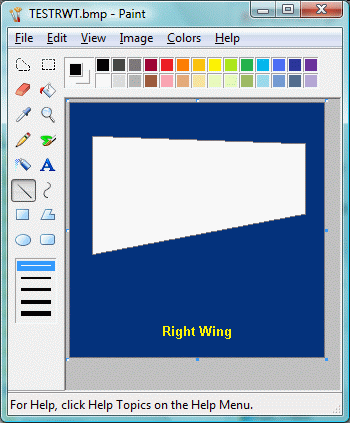
We're going to use our MACD program's Cap 232 right wing image to start drawing our paint scheme. If you want to follow along,
here's how to load the right wing image in MS Paint:
1. Right click here and select Save Target As... Then save it to the Desktop.
It's easier to find it there.
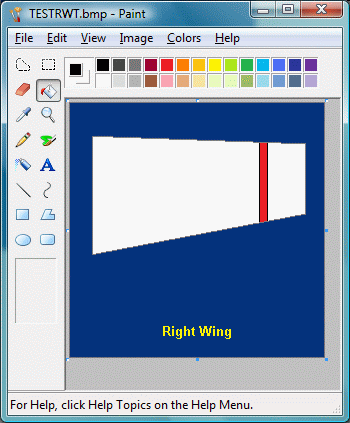
2. Start MS Paint, click File / Open. Navigate to the Desktop, select TESTRWT.bmp and click the Open button.
3. You should now have the right wing image in the Drawing area of MS Paint.
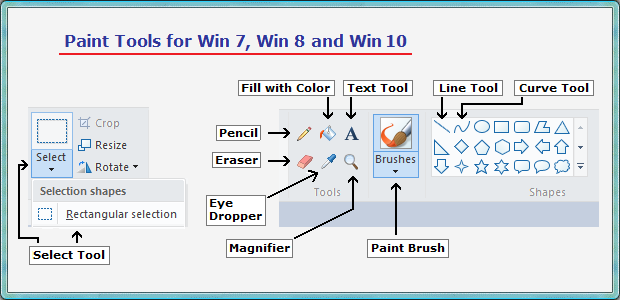
NOTE: For Windows 7 and later we have a Paint Tool Locations graphic down below.
|
 |
Drawing a Straight Line : Click on the Line tool to activate it. It's the tool on the sixth row,
left side and it's highlighted with a square. Bring the cursor over the wing and place it close to the wing tip.
See below.
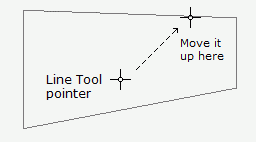
Press and hold the left mouse button then drag the cursor down to meet the bottom of the wing tip. Release the mouse.
A straight line is drawn. See below.
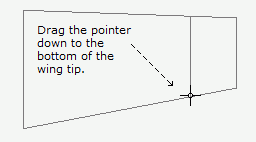
The line must be touching the leading and trailing edges of the wing.
If the line didn't come out right, we can fix that. Go to the top menu and click Edit / Undo. Then
try drawing the straight line again.
|
In Win 7 and later we have the same tools, same icons, but at different locations.
|
 |
Drawing a Vertical Stripe : Using the same procedure as above, draw a straight line parallel to the line we just
drew. See below.
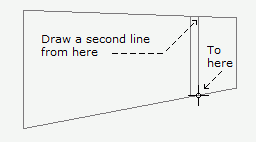
Again, if it doesn't come out right, go to the top menu and click Edit / Undo. Then draw it again.
Let's fill the space between the two lines with color. Click on the Fill with Color tool. It looks
like a paint bucket and it's found on the second row of tools.
Now click on the red box in the Color Palette. That will give us a red color to paint with.
The last step is to click between the two parallel lines. Now you should see a red vertical stripe.
If not, check that your lines are touching the leading and trailing edges of the wing. They have to touch
so the red color doesn't spill out to the rest of the wing.
|
Drawing a Curve:
Before we start, we need to reload the right wing image. Go to the top menu, click on File / New, and press
the Don't Save button. Now click on File / Open, navigate to the Desktop, select TESTRWT.bmp and click the
Open button. A clean right wing image should be in the Drawing Area now.
|
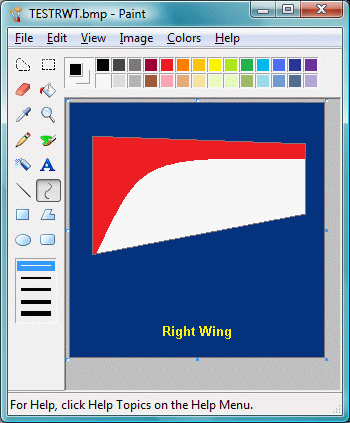 |
Start by clicking on the Curve tool to activate it. It's located on the sixth row, right
side. Now click on the red box in the Color Palette.
Press and hold the left mouse button then drag the cursor from bottom left to top right side of the wing.
Release the mouse button. See below.

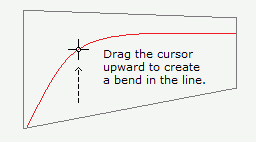
Place the cursor on top of the red line, press and hold the mouse button and drag the cursor upward. The
line will bend into a curve. Stop moving the mouse and click twice. A curve is drawn. See below.
Click on the Fill with Color tool to activate it. Now click above the red line to paint the top part of wing.
|
END OF "PART 2: Beginning to Draw"
We have learned how to draw the basic graphic elements of paint scheme design. These graphic elements
are Lines, Curves and Stripes. Most aircraft scheme designs will have one or more of these basic graphic
elements.
The next step is "PART 3: Intermediate Drawing".
|
© Copyright 1998-2019, Model Airplane Color Design. All Rights Reserved.
All trademarks are trademarks of their respective owners.
|